


Let’s break it down:
standing at the starting line of video editing in 2026 can feel like staring at the control panel of a spaceship. The options are overwhelming, the subscription prices for professional software are enough to make your wallet wince, and the “free” options often come with a catch (hello, giant watermark in the corner of your video).
But you don’t need a Hollywood budget to make content that looks and feels professional. The landscape of free video editing software has evolved to the point where beginners can access tools that were only available to studios a few years ago. It’s all about finding the right one for your current skill level and ambitions .
The Two Main Paths: Power vs. Simplicity
Before diving into specific software, it helps to visualize the choice in front of you as a fork in the road. You can choose between a powerful, professional-grade suite that offers everything you’ll ever need but requires time and patience to learn, or a more accessible tool designed for quick wins and easy social media content.
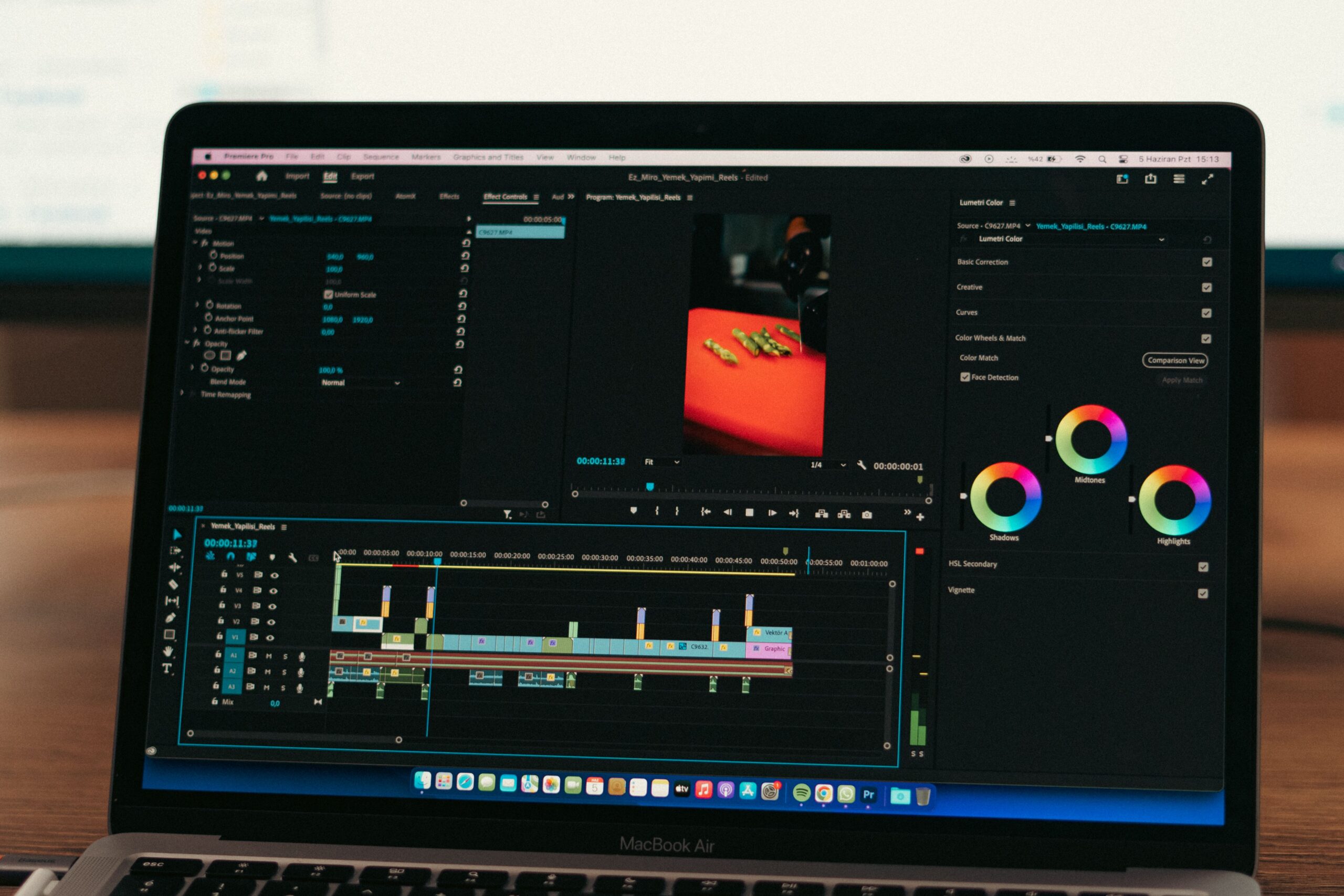
Path One: The Deep End (DaVinci Resolve)
This is for the aspiring filmmaker, the YouTuber who wants cinematic color grading, or the creative person who loves learning new skills. This path is about mastering a craft.
Path Two: The Fast Lane (CapCut, Clipchamp, OpenShot)
This is for the social media creator on a deadline, the student with a school project due tomorrow, or anyone who wants to edit, export, and share without getting bogged down in settings. This path is about efficiency and ease of use.
Path One: For the Aspiring Filmmaker & Ambitious Learner
DaVinci Resolve: The Industry Standard That’s Completely Free
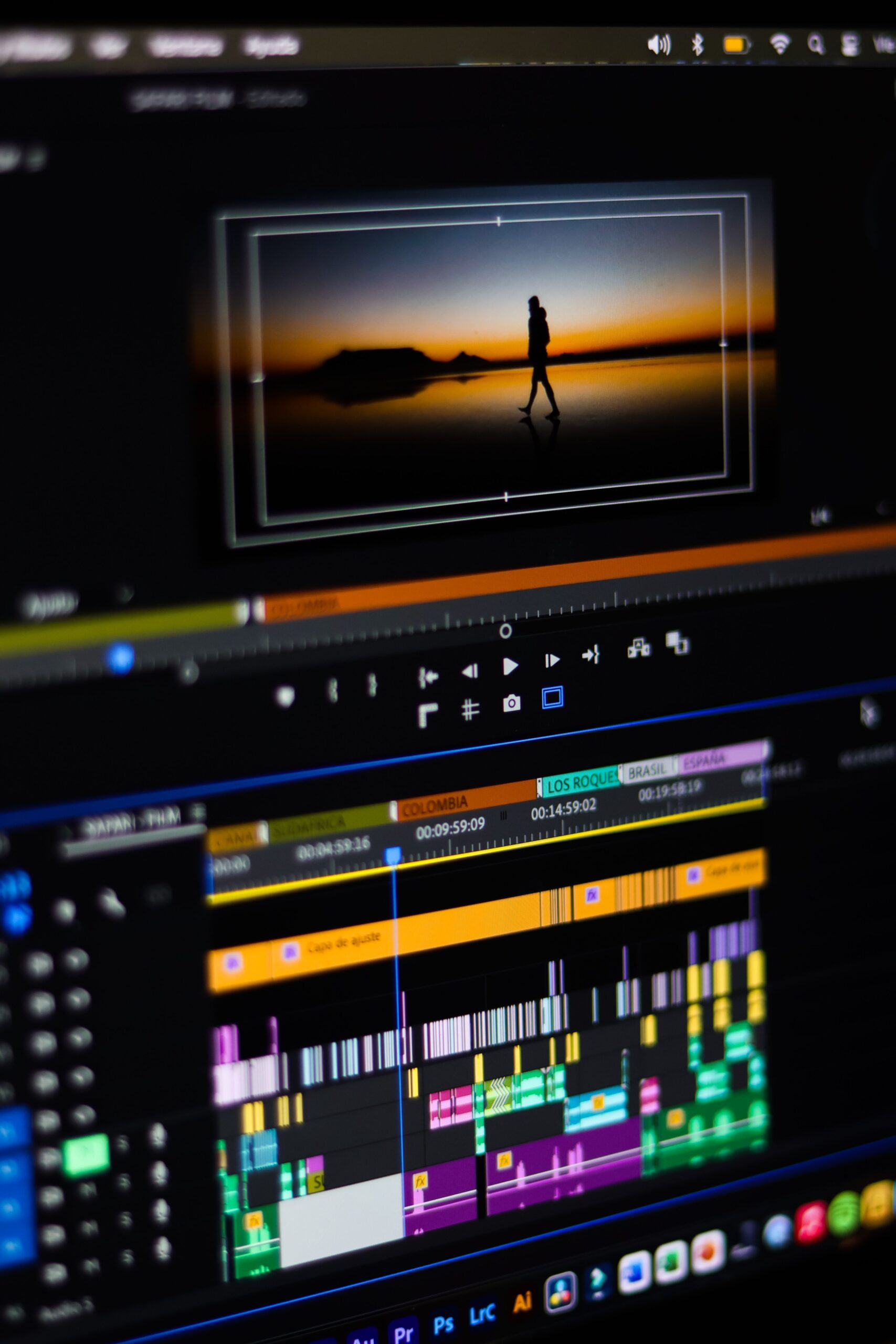
If there’s one piece of software that has completely disrupted the video editing world, it’s DaVinci Resolve. Frankly, it’s almost unbelievable that such a powerful tool is free . This is a full-fledged, professional non-linear editing (NLE) suite used in Hollywood, and the free version offers an insane amount of capability without any watermarks or time limits.
Why it’s a big deal for beginners:
You can start in the Cut page, which is designed to help you build a rough cut of your project quickly . It’s like a simplified workspace that hides the more complex features until you’re ready for them. From there, you can gradually move into the Edit page for fine-tuning, the Color page (Resolve’s legendary superpower for professional-grade color correction), and the Fairlight page, which is a full-fledged audio workstation .
The Reality Check: The Learning Curve is Steep
Let’s be honest: its power comes with complexity . The interface is packed with tools, and features like node-based compositing in the Fusion tab can be intimidating . It also requires a reasonably powerful computer to run smoothly .
Who it’s perfect for:
You’re an ambitious beginner who isn’t scared of a challenge. You want to learn professional workflows from day one and are willing to invest time in tutorials to unlock the best free editor on the market .
Path Two: For the Social Media Creator & Quick Editor
CapCut Desktop: The Social Media Powerhouse
If DaVinci Resolve is the professional film camera, CapCut is the smartphone camera—accessible, intuitive, and perfectly designed for how we create and consume content today. Owned by TikTok’s parent company ByteDance, CapCut is the go-to tool for anyone creating short-form vertical video .

What makes it special:
CapCut is designed to speed up your workflow. Its auto-captioning feature is excellent, and its massive library of transitions, effects, and filters perfectly matches the “TikTok style.” You can easily export in a variety of aspect ratios for different platforms . It’s free, has a clean interface, and won’t leave a watermark on your video .
The Reality Check:
While incredibly powerful for its purpose, it lacks the ultra-high-end tools of professional software. You might hit a ceiling if you’re trying to create a complex documentary or a narrative film . Also, while the desktop version is good, the interface is clearly built with mobile-first sensibilities.
Who it’s perfect for:
You’re a TikToker, Instagram Reels creator, or YouTuber who makes shorter videos. You need to edit quickly, add trendy effects, and get your content out to the world without a fuss.
Microsoft Clipchamp: The Browser-Based Simplicity
If you want the path of least resistance, especially if you’re on Windows 11, Clipchamp is a brilliant option . It’s a browser-based video editor that comes pre-installed with Windows.
What makes it special:
There’s nothing to download. It’s incredibly simple to use and comes with templates, making it perfect for “quick and dirty” projects . You can record your screen or webcam right in the browser, making it ideal for tutorials or business videos.
The Reality Check:
The free version limits you to exporting 1080p video, and many of its more advanced features or assets require a paid subscription. It’s best for simple projects, not complex, multi-layered edits.
Who it’s perfect for:
You’re a complete beginner who just wants to put a few clips together for a school project, a basic YouTube video, or a quick work presentation.
The Best Open-Source Options: Simple, Free, and Reliable
If you’re looking for a straightforward, no-frills experience on any platform (Windows, Mac, or Linux), the open-source community has you covered.
OpenShot: The Absolute Beginner’s Best Friend
OpenShot is often recommended as the “best for beginners” because its interface is so simple and intuitive . It uses a classic drag-and-drop timeline, offers unlimited tracks, and includes basic effects like chroma key (green screen) and keyframe animation . It’s free, open-source, and completely watermark-free . The catch is that it can be a bit sluggish on older computers and lacks the advanced polish of DaVinci Resolve .
Shotcut: Simple but Capable
Similar to OpenShot, Shotcut is a free, open-source editor that is easy to pick up. It’s praised for its wide format support and clean interface . It’s a fantastic “no-strings-attached” option for anyone who wants to edit without paying a dime or reading a manual .
The Apple User’s Best Bet: iMovie
If you’re in the Apple ecosystem, don’t overlook the software that comes free with your Mac or iPhone. iMovie is a hidden gem .
Why it’s great:
It’s shockingly powerful for a free app. You get a simple interface, excellent image stabilization, basic color grading tools, and the ability to make polished 4K videos. It’s pre-installed, so there’s no download or watermark to worry about .
The Reality Check:
It’s only for Mac and iOS users. It’s also limited to one video track, making complex edits a bit of a challenge.
Who it’s perfect for:
You’re a Mac user who wants to test the waters of video editing. You’ll get a fantastic taste of what’s possible before you ever need to think about more professional (and complex) software.
Conclusion: It’s About Where You Want to Go
The “best” free video editing software is the one that helps you create something you’re proud of. Your choice depends less on the features themselves and more on where you want to go with video editing.
-
Choose DaVinci Resolve if you see yourself as a filmmaker who wants to learn professional tools from the start and is willing to invest time to learn them .
-
Choose CapCut if your focus is on creating engaging, up-to-date content for social media, and you want the process to be as fast and intuitive as possible .
-
Choose OpenShot, Shotcut, or Clipchamp if you just need a reliable, easy-to-use tool for simple projects and want to avoid any complexity .
-
Choose iMovie if you’re a Mac user looking for a surprisingly capable and completely free way to start editing .
The beauty of starting with free software is that you can try them all. There’s no financial commitment. Download a couple, play around, and see which interface makes you feel most inspired and capable. Your first video edit is a great feeling and in 2026, you no longer have to pay a cent to experience it.
